Chess for Kids: How to Teach It Step by Step
 Play Chess
Chess for kids works best when you teach one piece at a time, then capturing, check and checkmate, and leave castling, en passant and promotion for last. This guide gives you that order, shows what our chess board does to help a beginner, says plainly what it does not have, and explains how to set up a slow, friendly game.
The order that works
A new player who sees all sixteen pieces at once learns nothing. Start with a board that has only pawns and kings, add a piece type each session, and only then play a full game. Every step below needs about one sitting; do not rush to the next until the child can do the current one without help.
| Teaching step | What to show | How the board helps |
|---|---|---|
| 1. Pawns | One step forward; two from the starting square; captures only diagonally forward, never straight ahead | Tap a pawn and its legal squares are marked, so the double step simply appears as a dot |
| 2. Knight, bishop, rook | One piece at a time, on a nearly empty board | Dots show every square the piece can reach; tap each piece and read the dots aloud |
| 3. Queen and king | The queen combines rook and bishop; the king moves one square | Same dots; the king is never offered a square that is attacked |
| 4. Capturing | A capture replaces the enemy piece; the pieces are not swapped | A square holding a capturable piece gets a ring instead of a dot |
| 5. Check | A king that is attacked must be saved: move it, block, or take the attacker | The king square turns red, a banner says "Check! Save your king", and a line is drawn from each attacker to the king |
| 6. Checkmate and stalemate | Mate: in check with no legal move. Stalemate: not in check, no legal move, a draw | The mated king square goes solid red; the end card names the reason |
| 7. Special moves | Castling, en passant, promotion | They show up as ordinary dots when legal; promotion opens a picker with queen, rook, bishop and knight |
The full piece movements are in pieces and moves, and a one-page reference is in the chess rules cheat sheet.
What the board does for a beginner
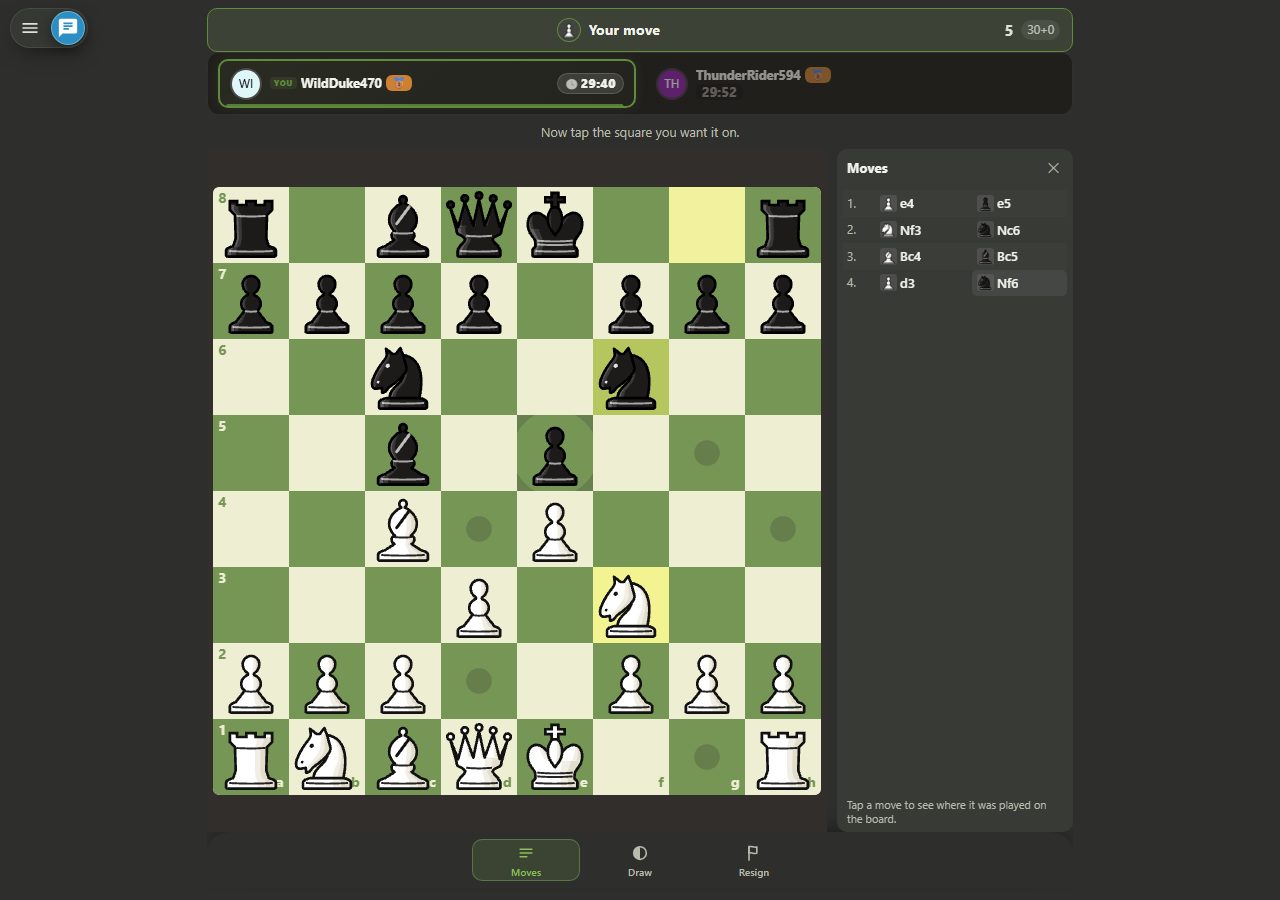
The board only marks moves the rules allow, so a child cannot make an illegal move by accident. Tapping a piece that has no legal move simply tells you so. Under the board a short coaching line walks through the turn: "Tap a piece to see where it can go", then "Now tap the square you want it on." You can also drag a piece instead of tapping.
The move list on the side shows every move with a small piece icon. It uses standard notation, and the letters K, Q, R, B and N stay English whatever language the site is in. Tapping a move points at where it was played.
Take back a move
Against a computer opponent there is a Take back button. It walks back your last move and the computer reply, and you can use it as often as you like. The clocks do not go back, though, so it costs time. Against another person there is no takeback.
What does not exist
Be straight about this: the chess board has no hints, no best-move suggestion, no puzzles, no lessons and no tutorial mode, and there is no post-game analysis. The board shows what is legal, not what is good. So you are the coach. Sit beside your child, ask "what is the other side threatening?" before each move, and after a game replay it using the move list.
The easy computer opponents
The computer players are a ladder of eight named characters. The two lowest are the ones to know.
- Pip (about 400): "Just learned how the pieces move: grabs whatever it can and never checks what comes back." It never resigns, but it will play a checkmate if it sees one.
- Mira (about 600): "Spots one-move threats, but never counts a trade to the end."
Those ratings are estimates of strength, not points a child can win or lose: games against a computer are never rated.
Which one will they meet?
The Play button at the top of this page seats a brand-new player against Mira, and Pip is the rung below. A player who loses twice in a row at a rung is stepped down one rung, so after two losses to Mira the next quick game is against Pip. A draw resets the count and nothing moves. After a win the end screen offers the next rung up as a button; it never moves up by itself. If you would rather choose, create a room, set the opponent to Computer and use the Bot level picker.
The Play button flips a coin for the colour, so your child may be White or Black. The create-room screen lets you choose.
Pick a slow clock
A chess clock counts down your whole game, not each move, and a player whose time runs out loses. The default is 10+0: ten minutes each, no extra time. That is fine for a first game, but for a young beginner choose the slowest options: 15+10 (fifteen minutes, ten seconds added after each move) or 30+0 (thirty minutes each). Skip the one-, two- and three-minute choices: a child who is still finding the pieces will lose on time before the position matters. More on this in chess time controls.
Play your child by room link
Once they know the rules, a game against you teaches more than a computer game, because you can explain as you go. Create a chess room, choose a time control, and switch on Link only so the room is hidden from the lists. Copy the link and send it to the other device; whoever opens it takes the second seat. There is no takeback in a game between two people, so agree up front whether you will let them retake an obvious blunder.
What to do with this
Pick one step from the table and do it today. Open the chess game, tap a piece, and let your child read the dots. When the pieces feel natural, play a full game against Mira, take back the first blunder together, and move to a slow clock. When they win twice in a row, the next rung up is waiting. After that, the how-to-play guide covers the whole rulebook.
Frequently Asked Questions
How do I teach chess to a kid?
Teach one piece at a time on a nearly empty board, then capturing, then check, then checkmate. Leave castling, en passant and promotion until the basics feel natural. On our board, tapping a piece shows its legal squares as dots, so the child can explore without making illegal moves.
Is there a tutorial or hints for beginners?
No. The chess board has no tutorial, hints, best-move suggestions or puzzles. What it does have is legal-move dots, rings on capturable pieces, a red glow when a king is in check, a coaching line under the board and a takeback button against the computer.
Which computer opponent is easiest?
Pip is the easiest of the eight computer characters: it grabs what it can and never checks what comes back. A brand-new player starts against Mira, one step up. You can pick any rung yourself in the create-room screen, using the Bot level picker.
Can my child undo a move?
Yes, against the computer. Take back removes your last move and the computer reply, and you can use it as often as you like, but the clocks do not go back. In a game against another person there is no takeback.
What time control should a beginner use?
Choose a slow one. The default is 10+0, ten minutes each. A young beginner is better off with 15+10 (ten seconds added after each move) or 30+0 (thirty minutes each), because a very short clock makes a child lose on time before they have looked at the board.
Can I play chess with my child over a link?
Yes. Create a chess room, switch on Link only, copy the link and send it. The room stays out of the public lists, and whoever opens the link takes the second seat. You can choose the colours and the time control when you create the room.